
Guides
Order bump: what it is, examples, and how to add one
Learn what an order bump is, see practical examples, compare checkout tools, and follow the steps to add and measure a relevant offer in Plug&Pay.
Order bump: what it is, examples, and how to add one
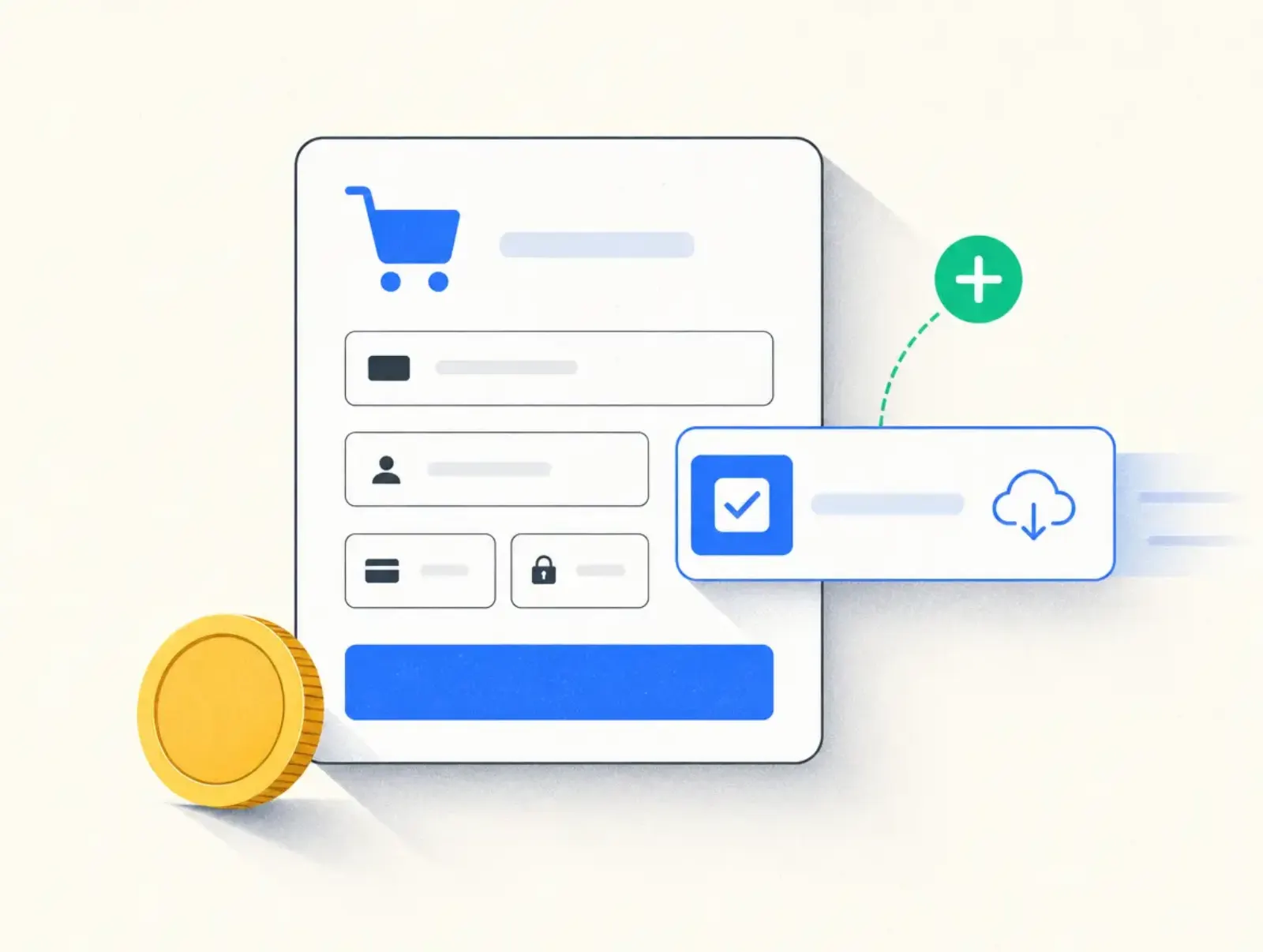
An order bump is an optional extra product offered on the checkout page before the customer pays. The buyer selects it, sees the updated total, and completes the purchase. This guide covers examples, realistic ways to measure results, tool costs, and the steps to add a bump in Plug&Pay.
By Seph Fontane Pennock. Published and updated 8 October 2026.
What is an order bump?
An order bump is a small, relevant add-on that a customer can select while buying your main product. It appears within the checkout, before payment, rather than on a separate sales page. Its purpose is to increase the value of a purchase without making the original product harder to buy.
For a course creator, that might be a workbook that helps students apply the lessons. For a consultant, it could be a preparation template that makes an upcoming session more useful. The main purchase must still deliver what the sales page promised if the customer declines the extra.
The checkout software controls how the offer appears and how fulfillment is triggered. A payment provider handles the charge. Plug&Pay uses hosted checkout pages and connects to Mollie or Stripe, as its payment provider guide explains, checked 8 October 2026. Adding a bump does not turn Plug&Pay into a course platform.
Order bump, upsell, and cross-sell
These terms describe different aspects of an offer. Cross-selling means suggesting a complementary product; an order bump is one place to present that suggestion. Upselling commonly means offering a larger or more complete option, although checkout tools also use the term for a separate offer after payment.
| Offer | Where it appears | Example |
|---|---|---|
| Order bump | On the checkout, before payment | Add a workbook to a course |
| Post-purchase upsell | After the original purchase | Add a private coaching session |
| Cross-sell | At different points in the buying journey | Suggest a related template pack |
Kajabi's upsell overview, checked 8 October 2026, makes the same before-payment versus after-payment distinction. Payment grouping can depend on the platform and offer type, so check the receipts in your own test purchase.
How order bumps work
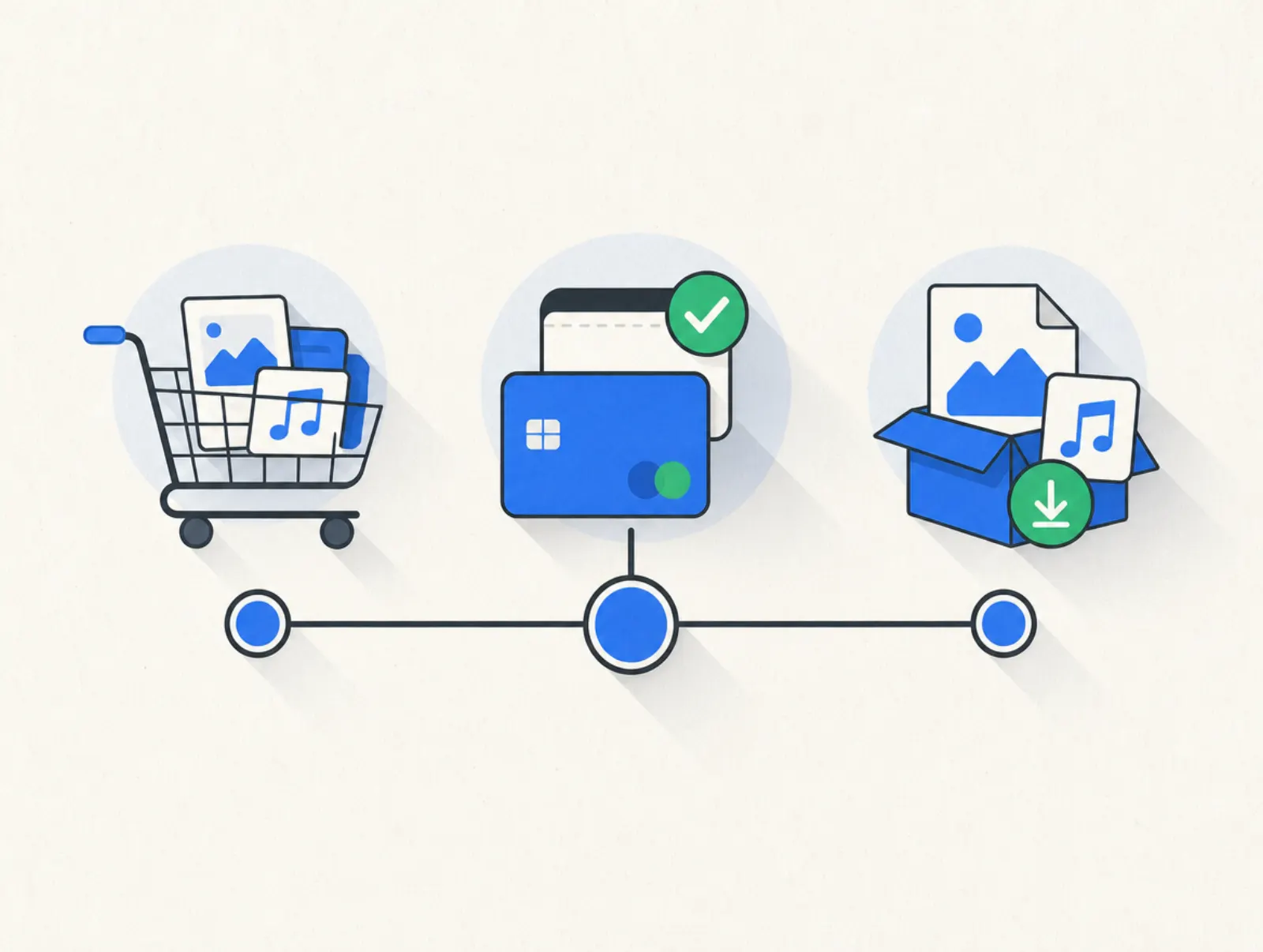
The buyer reaches checkout having already chosen the main product. A short offer explains what the extra adds, displays its price, and provides a clear selection control. Selecting it updates the order summary before the buyer submits payment.
After a successful payment, fulfillment must deliver both purchased items. A downloadable checklist needs a working delivery link; access to extra lessons needs the correct access rule. The checkbox the buyer clicks is only the visible front end of that process.
Start with an offer you can explain in one sentence. If the buyer needs to compare packages, watch a demo video, or understand a different problem first, the offer may belong on its own page. Keep the route to paying for the main product obvious.
Benchmarks and the numbers to track
Plug&Pay reports an average order-bump conversion rate of 24.9% on its order bumps feature page, checked 8 October 2026. The page describes this as roughly a quarter of buyers adding a bump. It does not provide a sample size, measurement period, or methodology, so treat it as a vendor-reported reference, not a forecast for your store.
Distinguish acceptance from checkout conversion. Acceptance asks how many completed eligible orders included the bump. Checkout conversion asks how many eligible checkout visitors completed a purchase at all. A bump can improve the first figure while hurting the second.
| Metric | Calculation | What it tells you |
|---|---|---|
| Bump acceptance rate | Orders with the bump ÷ completed orders eligible for it | Whether buyers want the extra |
| Average order value | Order revenue ÷ completed orders | How much each purchase brings in |
| Revenue per checkout visitor | Order revenue ÷ eligible checkout visitors | Whether larger orders offset lost purchases |
| Contribution per checkout visitor | Revenue minus relevant costs, divided by visitors | Whether the offer improves the economics |
Use comparable traffic and the same reporting window. Exclude test orders and decide how to handle refunds before comparing results. For recurring offers, separate money collected today from possible future payments.
Order bump examples
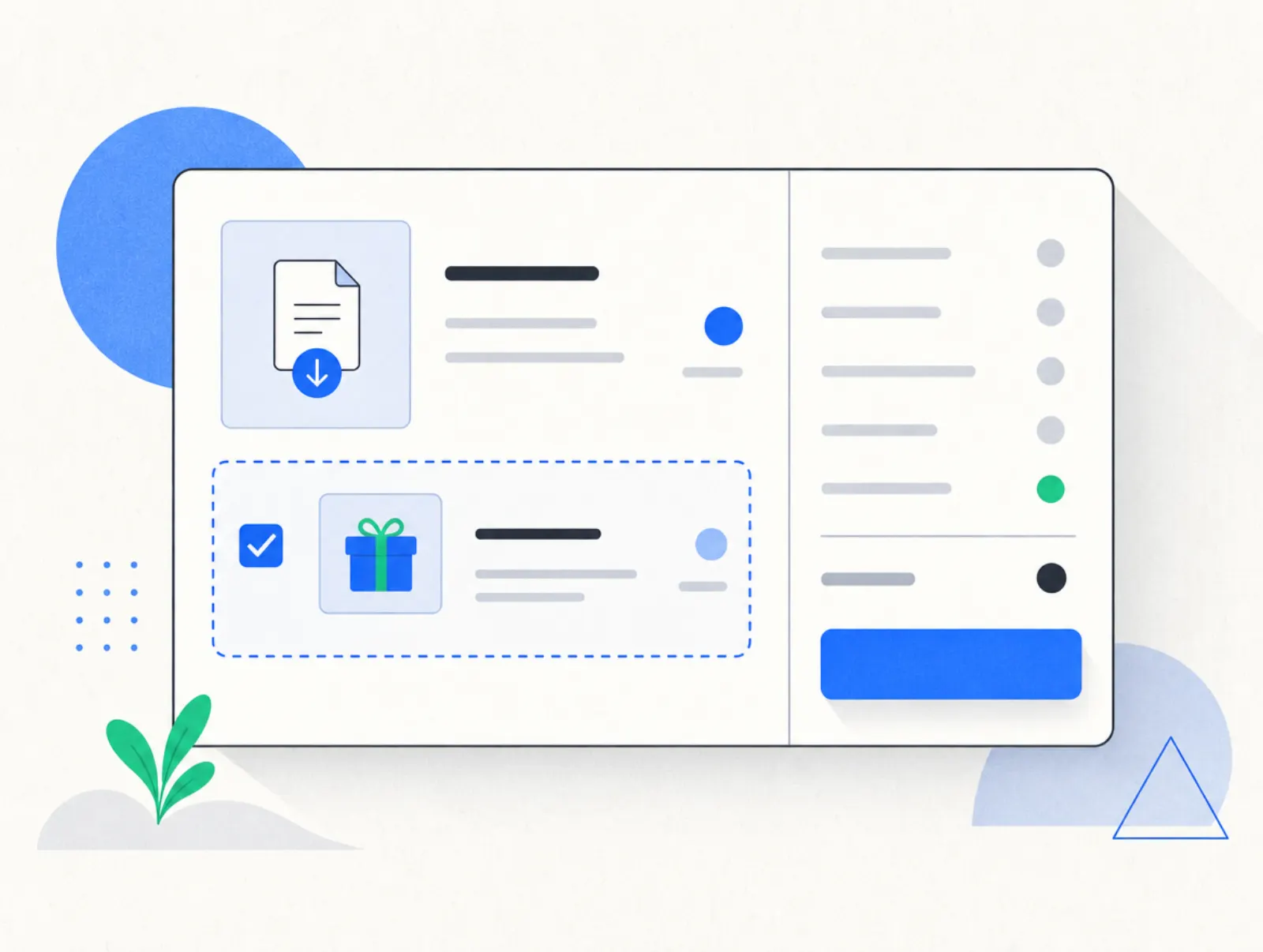
The following prices are hypothetical teaching examples created on 8 October 2026, not vendor prices or measured customer results. Each extra solves a task closely connected to the main purchase.
| Main product | Main price | Bump offer | Bump price | Total with bump |
|---|---|---|---|---|
| Beginner photography course | $49 | Printable camera settings reference | $9 | $58 |
| Interview preparation workshop | $79 | Answer-planning workbook | $15 | $94 |
| Freelance proposal template kit | $39 | Project handoff checklist pack | $9 | $48 |
| Recorded business planning course | $149 | Editable planning spreadsheet | $19 | $168 |
| Consultant's strategy session | $199 | Written follow-up action plan | $49 | $248 |
Source: illustrative prices and arithmetic prepared for this article on 8 October 2026. Totals exclude any applicable tax; none is a real offer advertised by the tools below.
The camera reference is useful during practice, while the interview workbook helps the buyer prepare answers. Both are easier to explain than an unrelated second course. The planning spreadsheet offers a different format for applying the same material.
The consultant's action plan requires more care. If a written plan was already promised with the session, charging extra for it would contradict the original offer. If it is genuinely additional work, account for the time needed to produce it before setting the price.
A worked revenue example
Assume the photography course gets 100 completed orders and 20 buyers add the reference sheet. The calculation below holds order volume constant to isolate the bump's contribution. It does not show what would happen if the extra offer changed checkout conversion.
| Hypothetical calculation | Result |
|---|---|
| Course revenue: 100 × $49 | $4,900 |
| Bump revenue: 20 × $9 | $180 |
| Combined revenue | $5,080 |
| Average order value: $5,080 ÷ 100 | $50.80 |
| Acceptance rate: 20 ÷ 100 | 20% |
Source: illustrative scenario calculated on 8 October 2026 using the example prices above. This is gross revenue before processing fees, refunds, taxes, and delivery costs, not an observed benchmark.
To evaluate the real result, compare this checkout with an otherwise comparable version without the bump. Measure revenue and contribution per visitor as well as order value. A larger average purchase alone is insufficient evidence that the change helped.
How to set it up
The preparation is similar across tools. Decide what the extra product contains, how you will deliver it, and whether the main product remains complete without it. Then configure the offer and test the entire purchase path.
- Create the add-on product. Give it a distinct name and a delivery method you can test. Keep its contents separate from anything already included in the main purchase.
- Set the price and payment terms. Make it clear whether the buyer pays once or repeatedly. Check that the checkout supports the combination of product types and payment methods you need.
- Attach it to the right checkout. Choose the main product whose buyers would benefit. Start with one relevant extra so you can understand what changes the results.
- Write the offer. Name the item, explain the practical benefit, and show the additional cost beside the selection control. Use a descriptive image only if it helps the buyer understand the contents.
- Connect fulfillment. Verify what happens after a successful purchase, a failed payment, and a refund. Buying only the main product must not accidentally grant access to the extra.
- Test and measure. Check mobile display, selecting and removing the bump, the final total, receipts, and delivery. Compare performance with the same checkout without the offer.
For the hypothetical photography example, the copy could read: "Add the printable camera settings reference for $9. Keep exposure reminders beside you while practicing." The amount comes from the illustrative example above, prepared 8 October 2026; it is not a vendor price.
In Plug&Pay
Order bumps are included in Lite, Premium, and Ultimate. Lite has a three-product limit, so count the main product and add-ons when planning your catalog. Premium is the relevant upgrade if you also need one-click upsells or A/B testing; Ultimate is not required simply to add a bump.
The official setup article, dated 7 May 2026 and fetched 8 October 2026, gives this path:
- Go to Pages > Checkouts and select the checkout.
- Open Content > Order bump.
- Select Add, choose an existing product, and click Next.
- Edit the headline, description, color, and product image, then click Save.
Plug&Pay permits up to three bumps per checkout. Its Suggestions option creates products automatically, so review the resulting product and arrange delivery before selling it. Under the checkout's Results, inspect orders containing a bump; use Statistics > Pages for individual bump conversions and revenue.
After saving, run your own purchase test. Confirm that the buyer can complete checkout without accepting the extra, and that the correct items appear on the receipt. Do not assume that saving the offer also configured access in your separate course or delivery system.
Mistakes to avoid
- Selling a missing piece of the main product. An extra should help buyers go further or work faster. It should not supply something required to get the result you already promised.
- Choosing an unrelated offer. A shared audience is not enough. The buyer should understand why this extra belongs with this particular purchase.
- Making the price hard to see. Display the additional amount near the selection control and update the total clearly. Recurring charges need an equally clear billing schedule.
- Adding too many decisions. A platform's maximum number of bumps is a technical limit, not a recommendation. Start with one and earn the space for another through testing.
- Ignoring fulfillment costs. A digital reference sheet and a personal review have different delivery economics. Include your time, support work, and refund exposure when assessing the offer.
- Measuring acceptance alone. Review checkout completion, refunds, and contribution per visitor together. A popular add-on can still make the overall checkout less effective.
- Testing only the successful purchase. Also decline the bump, remove it, and check what happens when payment fails. Make sure each outcome gives the buyer the right access and receipt.
Tools that do this
Compare the plan that actually includes order bumps, the payment fees, and the delivery system you need. The table covers four options for digital-product sellers. If you are evaluating a full course platform, our Kajabi pricing breakdown covers the wider subscription costs.
| Tool and relevant plan | Advertised price checked 8 October 2026 | Fees to account for | Bump capability and limits |
|---|---|---|---|
| Plug&Pay Lite | €15/month billed annually (€25 monthly) | No platform fee; Mollie or Stripe processing fees | Up to 3 bumps per checkout; Lite allows 3 products total; course delivery requires a separate system |
| Kajabi Basic | $179/month, or $143/month billed annually | US Kajabi Payments cards: 2.9% + $0.30; eligible third-party processing adds 2% on Basic, excluding PayPal | Native bumps and course delivery; up to 6 bumps with Enhanced Checkout, subject to payment and offer requirements |
| SamCart Pro | $199/month, billed monthly | SamPay: 2.9% + $0.30; no added SamCart fee on SamPay; Pro tax collection listed at 0.35% | Reusable global bumps; current pricing places bumps on Pro, not new Core |
| ThriveCart Standard | $47/month, billed monthly | Processing and applicable application fees; see fee note below | 1 bump on Standard; multiple digital bumps require Pro+ and Stripe Connect+ |
Prices taken from plugandpay.com/pricing, kajabi.com/pricing, and samcart.com/pricing on 8 October 2026. ThriveCart's /pricing/ redirected to sign-in; its official feature page pricing section supplied the monthly price on 8 October 2026. Processor pricing checked at Stripe and Mollie the same day; rates depend on the business and payment method.
Kajabi and SamCart fee figures in the table come from those same pricing pages, fetched 8 October 2026. They are not an exhaustive schedule of payment-method, international-card, currency-conversion, or refund charges.
Plug&Pay pricing: Lite is €25 a month, or €15 a month billed annually (€180 a year). Premium is €69 a month, or €59 a month billed annually (€708 a year). Ultimate is €149 a month, or €119 a month billed annually (€1,428 a year). Prices exclude VAT, and a 14-day free trial runs before the first debit. Prices taken from plugandpay.com/pricing on 10 October 2026.
For Kajabi, the bump requirements restrict multiple bumps to eligible one-time offers without pricing options. The third-party fee applies where Kajabi Payments is available; it is additional to provider charges. Both the requirements and pricing were checked 8 October 2026.
SamCart's current plan guide agrees with its pricing page about Pro. Its global bump setup article still lists Core alongside older tiers. This table follows the current plan guide, checked 8 October 2026; existing accounts should check their own entitlements.
ThriveCart's application-fee article, fetched 8 October 2026, lists processor charges plus applicable fraud, subscription, and tax fees. It also lists a 0.5% external-platform fee for Stripe Legacy and Stripe Enhanced transactions effective 8 October 2026. Its advertised sales-fee headline is therefore insufficient to estimate your processing bill.
For a broader comparison of checkout requirements, see our ecommerce checkout software guide. Choose based on the complete purchase and delivery workflow, then test a bump with your own audience.
Trials and cancellation
These are trials of the software account, not free trials you offer your customers. Trial and cancellation information below was checked on 8 October 2026.
- Plug&Pay: its pricing FAQ offers a 14-day free trial with cancellation before the first debit. Monthly contracts renew monthly and annual contracts annually; the FAQ says subscriptions renew automatically.
- Kajabi: the standard trial is 14 days. Follow its account cancellation instructions; access ends at the end of the billing or trial period.
- SamCart: the current plan guide specifies a seven-day free trial. Its self-service cancellation guide uses Billing > Manage > Cancel My Subscription, followed by confirmation.
- ThriveCart: the official feature page advertises a 30-day free trial. Its FastStart page advertises cancellation at any time for monthly offers, but uses different packages; cancellation and refund terms for the exact standard offer could not be verified from the fetched help pages.
What reviewers say about the surrounding workflow
"Their knowledge base is outstanding." Madlyne Schoonderbeek, Trustpilot, published 2 November 2025.
"But you still need email software and for courses a course platform." Angelique Schreurs, Trustpilot, published 2 November 2025.
Both reviews were fetched on 8 October 2026. They describe individual experiences with documentation and the wider software setup, not measured order-bump performance. That distinction matters when budgeting for a checkout that connects to separate delivery tools.
Related reading
- Ecommerce checkout solutions: digital product tools (2026)
- Upsell and downsell guide: strategy and examples
FAQ
What is a bump offer?
A bump offer is another name for an order bump: an optional add-on displayed during checkout before payment. It should have an obvious connection to the main purchase and show its additional cost before the customer accepts it.
What is the difference between an upsell and an order bump?
An order bump appears within the original checkout before payment. A post-purchase upsell appears after the initial purchase, usually on another page. More broadly, upselling can also mean upgrading to a higher-value version, so check how your software uses the term.
How much should an order bump cost?
There is no universal price or required percentage of the main product's price. Start with the value of the extra and its delivery cost, then test whether buyers understand and want it. Judge the result using contribution per visitor as well as acceptance rate.
Can an order bump be a subscription?
Some platforms support recurring bumps, but eligibility depends on the plan, payment provider, and other items in the checkout. ThriveCart's bump documentation, checked 8 October 2026, requires Pro+ and Stripe Connect+ for subscription bumps. State the future billing schedule clearly before purchase.
Which Plug&Pay plan includes order bumps?
Lite includes order bumps, and Premium and Ultimate inherit that feature, according to the pricing page checked 8 October 2026. Lite's product limit may become the constraint as you add more products. You do not need Ultimate solely for an order bump.